Best Background Editors for Product Photos
Compare product-photo background editors by edge control, white-background exports, batch limits, and licensing—with an identical-input test rubric and publisher disclosure.

Quick answer
The right background editor for product photos depends on whether you need fast pure-white cutouts for a catalog, multi-image batch exports, or finished ad layouts. Disclosure: PhotoBGOff publishes this guide, and both our single-image editor and Bulk Studio appear below alongside Photoroom, Pixelcut, Canva, Adobe Express, and GIMP.
On this page

Key takeaways
- Separate cutout accuracy from AI scene generation: Pure background removers preserve every label, stitch, and proportion of your actual product, whereas generative background tools can subtly alter reflections or fine text if left unchecked.
- Check licensing and export ceilings before committing: Several popular editors offer free single-image tests that cap monthly exports, restrict resolution below 4K, or reserve commercial use for paid subscriptions.
- Test every shortlisted editor on the same three difficult products: A simple high-contrast box looks fine almost everywhere; real differences show up on glass reflections, white-on-white rims, thin straps, and batch consistency.
How to evaluate a product-photo background editor
Most roundups rank editors on marketing claims or run different easy photos through each tool. A reliable comparison uses identical source files and checks five workflow criteria that directly affect ecommerce listings:
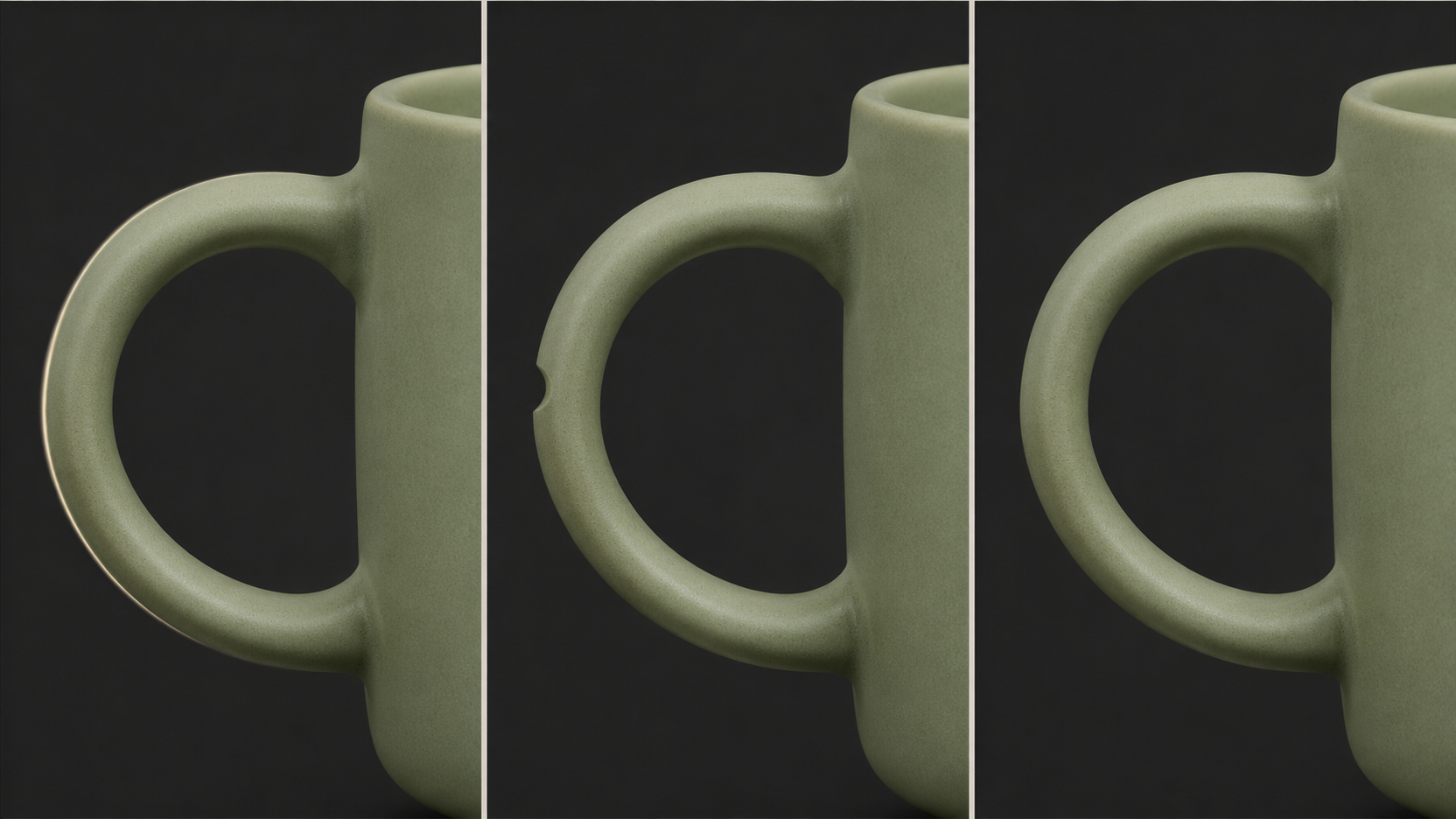
- Edge fidelity at 100% zoom: Check whether matte textures, translucent glass, metallic edges, and thin handles stay intact without bright halos on dark backdrops or missing bites on white
#FFFFFF. - Manual edge touch-up: When an automatic mask misses an inner handle or clips a pale edge, can you paint it back quickly without switching apps?
- Marketplace formatting: Can you set a pure
#FFFFFFbackground, apply consistent square framing without cropping off edges, and export lossless PNG or clean JPEG? - Batch throughput and export packaging: If you shoot 30 to 500 SKUs at a time, check whether the tool applies shared settings across a queue and exports a clean folder or ZIP.
- Account, watermark, and commercial-use limits: Verify whether free exports carry watermarks, resolution caps, or personal-use-only restrictions before putting outputs on a live storefront.
Documented workflow comparison at a glance
The table below summarizes vendor-documented positioning and plan structure verified from official vendor pages on November 28, 2026. Pricing and tier allowances change frequently—confirm current terms on each provider's site before purchasing.
| Editor | Best workflow fit | Documented pricing & free access | Batch & export notes | Manual edge touch-up |
|---|---|---|---|---|
| PhotoBGOff (publisher) | Browser-based single cutouts and multi-image ZIP batches | Single-image editor and Bulk Studio in the browser | Single exports (transparent or solid background) plus multi-image ZIP output in Bulk Studio | Built-in edge touch-up in the single-image editor |
| Photoroom | Dedicated ecommerce catalogs, presets, and Shopify sync | Paid plans start at $12.99/mo ($7.50/mo billed yearly) for Pro (1,000 exports/mo); Max is $34.99/mo ($20.99/mo yearly, 3,000 exports/mo); Ultra is $99/mo ($82.50/mo yearly, 10,000 exports/mo) | Core removal tools are included on paid plans without AI credit cost; exports cap at 2K below Ultra; API is billed separately | Built-in retouch and edit tools |
| Pixelcut | Mobile-first and browser cutouts with high-volume batch tiers | Free tier ($0, limited background removal, no watermark); Pro $10/mo ($8/mo billed yearly, 1,000 batch exports/mo); Business $30/mo ($24/mo billed yearly, 2,000 batch exports/mo) | Commercial license is listed on Pro and Business plans | Eraser and retouch tools available in the editor |
| Canva | Teams turning cutouts directly into ads, social posts, and banners | Free tier with limited shared AI access; paid Pro and Business plans unlock expanded AI allowances and bulk tools | Designed around finished multi-layer layouts rather than standalone catalog-only pipelines | Manual brush refinement inside the editor |
| Adobe Express | Brands already using Photoshop or Illustrator assets | Free plan (no credit card required, limited generative credits); Premium adds 250 generative credits/month and Creative Cloud asset sync | Syncs .psd and .ai files from Photoshop and Illustrator; Firefly features are designed for commercial workflows |
Basic adjustments in Express; deep masking hands off to Photoshop |
| GIMP | Zero-subscription local desktop masking for tricky glass or glare | Free and open-source desktop software | Manual per-image workflow; no built-in one-click ecommerce batch queue | Full pixel-level control via non-destructive layer masks |
Which editor fits your catalog workflow
1. PhotoBGOff (single cutouts and batch ZIPs)
Note: PhotoBGOff publishes this guide.
Use PhotoBGOff's single-image editor when you want a focused cutout workflow with transparent export, solid background replacement, and edge touch-up without learning a full graphic-design suite. When you need matching backgrounds across a group of product shots, switch to PhotoBGOff Bulk Studio to process multiple images and download the completed files in a ZIP. For step-by-step marketplace setup, follow our guide on how to make product photos white and square.
2. Photoroom (ecommerce templates, shadows, and Shopify sync)
Photoroom is built specifically around ecommerce merchandising. Its paid tiers include core tools—Background Remover, Retouch, AI Shadows presets, and resizing—without consuming monthly AI credits, while reserving AI credits for generative scenes, fashion models, and video ads. Pay close attention to monthly export quotas (1,000 on Pro, 3,000 on Max, 10,000 on Ultra), the 2K resolution cap below Ultra, and the fact that API access requires a separate API plan.
3. Pixelcut (quick web/mobile cutouts and batch plans)
Pixelcut pairs a lightweight web and mobile interface with dedicated batch export quotas on Pro (1,000 batch exports/month) and Business (2,000 batch exports/month). Its Free tier allows limited watermark-free exports for trying out the workflow, while its pricing page lists a commercial license on Pro and Business—making it important for live stores to verify licensing before scaling up on a free tier.
4. Canva (product cutouts inside finished marketing layouts)
Choose Canva when removing the background is only step one of making a promotional graphic, carousel slide, or banner ad. Because Canva's AI tools operate under shared monthly allowances that vary by plan, sellers who only need clean white-background catalog exports may find a dedicated background editor faster and more predictable than working inside a full layout canvas.
5. Adobe Express (Creative Cloud sync and brand kits)
Adobe Express fits teams that already store brand templates, fonts, or .psd/.ai source files in Creative Cloud. Its Premium tier includes 250 monthly generative credits powered by Adobe Firefly, and if an especially difficult transparent bottle or reflective piece of jewelry needs manual pen-tool masking, the asset moves cleanly into Photoshop.
6. GIMP (free manual masking for difficult edges)
When every automatic remover struggles with a clear glass bottle, chrome reflection, or low-contrast white ceramic item, a manual desktop editor remains the most reliable fallback. GIMP is free, runs locally, and supports non-destructive layer masks so you can refine every pixel by hand—though it is too slow to be your primary tool for a 100-item catalog.
What to verify before locking in a tool
Before paying for a subscription or running a full catalog, run a three-photo stress test of your own products:
- Include your hardest SKU: Pick one matte item, one shiny or transparent item, and one item with thin straps, handles, or shadows.
- Inspect on both pure white and dark charcoal: A cutout that looks acceptable on white can still hide jagged corners, leftover tabletop corners, or faint color spill that shows up on colored banners.
- Check output pixel dimensions and file size: Confirm the tool does not silently downscale your 2000 px product photos to low-resolution previews on your chosen tier.
Frequently asked questions
Should I use a background remover or an AI background generator for marketplace main images?
Use a pure background remover for primary marketplace listing photos. Main images on major marketplaces require an accurate representation of the actual product on pure white, whereas generative scene tools can subtly alter product labels, stitching, or proportions. Reserve AI scenes for secondary lifestyle slots or social ads—and always inspect generated details against the real item.
Can I use a free background editor for a commercial online store?
Not always. Some editors restrict free plans to personal, non-commercial use, cap monthly exports, or limit resolution to low-res previews. Always check the vendor's current pricing and license terms before publishing free-tier exports on a commercial store.
What is the best way to handle a large catalog of product photos?
Group products by similar lighting and framing, test one representative batch of 5 to 10 photos first, and inspect the hardest edge case at 100% zoom before processing the full folder. Consistent source lighting reduces manual edge touch-up far more than switching between automatic tools.