How to Remove a Photo Background on iPhone or Android
Remove a photo background in your phone's browser, locate your downloaded PNG on iPhone or Android, and confirm transparency stayed intact before sharing or posting.

Quick answer
To remove a photo background on an iPhone or Android phone without installing an app, open a browser-based background remover, pick your photo from your library, confirm transparent or solid white output, and export a PNG. The editing steps are the same on both phones—only where the downloaded PNG is saved and how you access it differ between iOS and Android.
On this page

Key takeaways
- One browser workflow works on both phones: You do not need to download a separate mobile app or create an account just to isolate one subject.
- Know where your phone saves browser downloads: On iPhone, Safari saves exported PNGs to the Files app rather than directly to Photos; on Android, Chrome saves them to Downloads inside your Files app.
- Insert from Files to protect transparency: Opening your saved
.pngdirectly from Files or Downloads—instead of screenshotting a preview—keeps the alpha channel intact.
Remove the background in your phone browser
These four steps are identical in Safari on iPhone and Chrome on Android:
- Open the editor: Go to the PhotoBGOff background remover in your phone's browser.
- Choose your photo: Tap to select an image from your Photo Library, Gallery, or Files—or take a fresh photo with your camera.
- Wait for the cutout and check the setting: Let background removal finish while keeping the browser tab open. Confirm that the background is set to transparent (for overlays and stickers) or pure white (for store listings). If small spots around handles or edges need cleanup, zoom in and use edge touch-up—or check our guide to fix rough edges after removing a background for light-and-dark inspection tips.
- Export as PNG: Choose PNG if you need transparency (JPEG cannot store an alpha channel) and tap download.
Find and save your downloaded PNG on iPhone vs. Android
After tapping download, iOS and Android store browser exports in different places. Follow the section for your phone.
On iPhone (Safari and the Files app)
By default, Safari does not place downloaded PNGs directly into your Photos library. Per Apple Support, browser downloads go to your Downloads folder in the Files app:
- Confirm the download prompt: If Safari asks whether you want to download the file, tap Download.
- Open the file right away: Tap the Downloads button next to Safari's search bar, then tap Downloads to see your new
.pngfile. - Find it later: Open the blue Files app, tap Browse, open iCloud Drive (or On My iPhone if you changed Safari's default), and open the Downloads folder.
- Optional—copy to Photos: If you want the cutout in your Photos app, open the
.pngin Files, tap the Share button, and choose Save Image. When placing the cutout into a design or slide app, importing directly from Files is often safer because it avoids gallery re-compression.
On Android (Chrome and the Files app)
Per Google Chrome Help, Chrome saves downloaded images to your phone's default Downloads folder:
- Check the download banner: Once the download finishes, tap Open on Chrome's confirmation banner—or tap More (⋮) → Downloads in Chrome to view recent files.
- Find it later: Open your phone's Files app (such as Files by Google or My Files) and open the Downloads folder. Many Android gallery apps also display a Downloads album automatically.
- Share or insert cleanly: When adding the cutout to a design app, storefront uploader, or document, pick the
.pngfile from Downloads rather than sending it through a chat app that converts images to JPEG.
Verify the cutout on your phone
Phone galleries and file previews often display transparent PNGs against a solid white or black backdrop, which can make a valid cutout look opaque. To confirm transparency actually survived on your phone:
- Open a mobile slide, story, or design app and create a solid colored background.
- Insert the downloaded
.pngdirectly from Files (iPhone) or Downloads (Android)—do not take a screenshot of it. - Check that the colored background shows cleanly around the subject and through any inner openings.
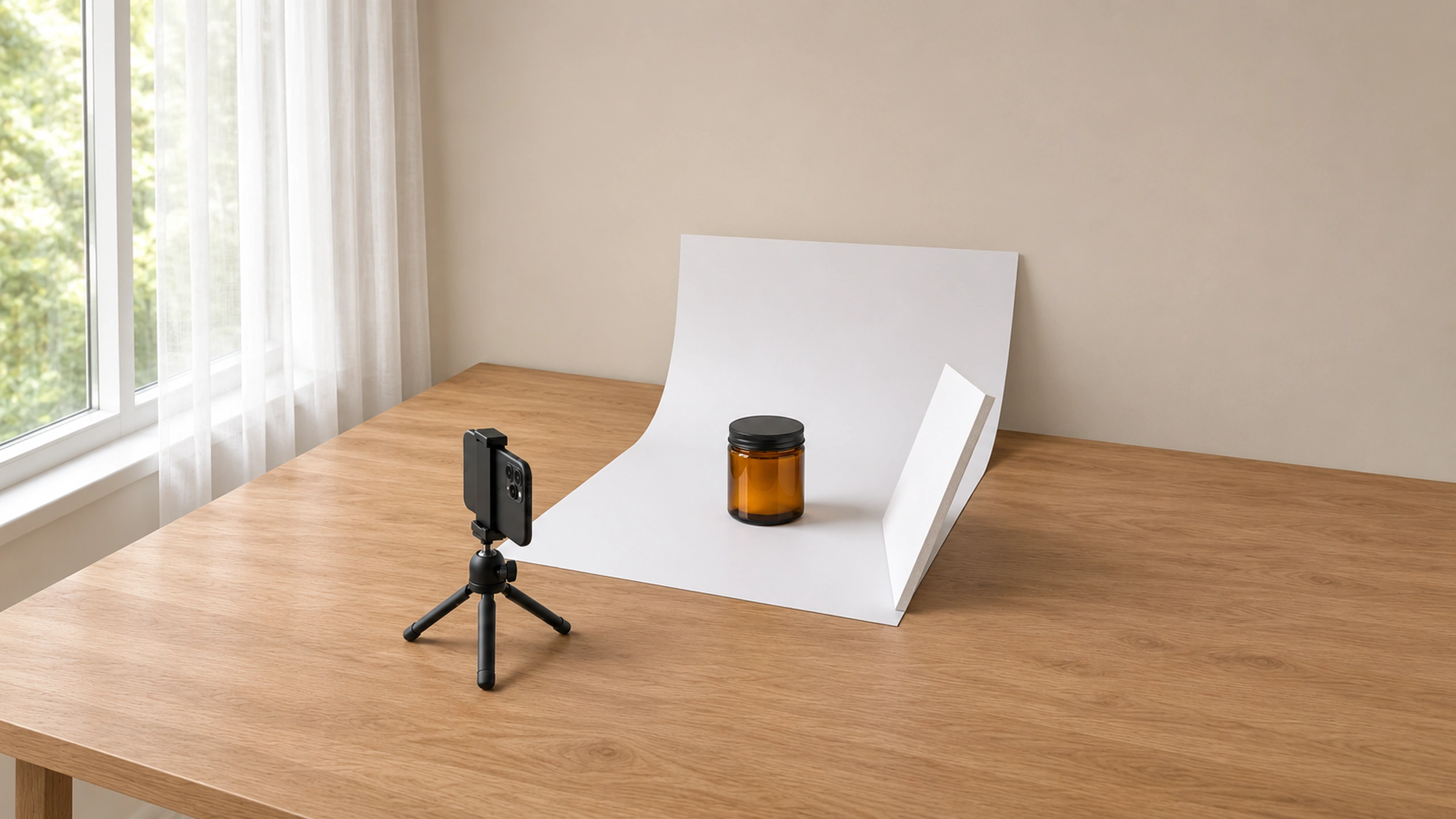
If you shoot product photos regularly on your phone, better lighting and backdrop contrast before editing will save time on every cutout—see our guide to take product photos at home with a phone.
Frequently asked questions
Do I need to install an app to remove a photo background on my phone?
No. A browser-based editor runs directly in Safari on iPhone or Chrome on Android, so you can remove a background and download a PNG without installing an extra app.
How is a browser background remover different from built-in phone tools?
Built-in tools vary by phone model and OS version: some focus on erasing a small distracting object while filling in the scene behind it rather than exporting a clean transparent cutout, and others offer limited manual edge touch-up or pure-white catalog options. A browser editor gives you one consistent workflow across iPhone and Android when you need a transparent PNG or a pure white background.
Why does my downloaded PNG look white or black in my phone's Photos or Gallery app?
Mobile photo galleries draw a light or dark screen behind transparent pixels depending on your phone's light or dark theme. Place the saved .png over a colored background in a design or slide app to confirm whether the alpha channel is intact before re-exporting.